Everyone knows you cannot rename an Exchange Server once you have installed Exchange on it.
In this example the Server needed to be renamed. Exchange 2013 was un-installed, the server removed from the domain, renamed then added back to the domain.
Exchange 2013 was installed again. I noticed that some Exchange directories under program files\exchange were not removed by the un-installation, but decided that MS knew what they were doing. There were several GB worth of directories. I pondered on what else was left behind...
Installation gave no errors, and the server was put as the member of a DAG and came up with some errors when the DAG was set up. Interesting... firing up PowerShell on the server in question gave a cryptic error and little else.
Runspace Id: 22b854a9-cbd4-4567-97b6-f3aa52c12249 Pipeline Id: 00000000-0000-0000-0000-000000000000. WSMan reported an error with error code: -2144108477.
Error message: Connecting to remote server ex2.mydomain.local failed with the following error message : [ClientAccessServer=EX,BackEndServer=ex2.mydomain.local,RequestId=a34012f8-4b26-4ac7-9cb4-b57657fb9adf,TimeStamp=03/07/2014 16:31:29] [FailureCategory=Cafe-SendFailure] For more information, see the about_Remote_Troubleshooting Help topic.
Deleting and recreating the PowerShell virtual directory made no difference.
http://technet.microsoft.com/en-us/library/dd335085(v=exchg.150).aspx
Then my colleague noted a strange event in the event logs:
An error occurred while using SSL configuration for endpoint 0.0.0.0:444. The error status code is contained within the returned data.
This was more like it. HTTPS was pointing to a non-existent certificate - probably the original self signed certificate from the early installation, that was deleted during 'manual' tidying up. The new self signed certificate was bound and everything started working again.
I think next time an Exchange server needs 'renaming' I will un-install Exchange, then reinstall Windows from scratch... I doubt that much time is spent investigating problems like the above by the Exchange development team.
Saturday, 12 July 2014

Exchange 2010 to 2013 OWA delays after migration needs IIS application pool recycling
Migrating batches of OWA users from Exchange 2010 SP3 RU6 to 2013 CU5
When the http web page shortcuts were updated to point to CAS2013 (eg https://cas2013/owa) servers instead of CAS2010 servers just prior to the mailbox moves these users were unable to open their deleted items folder but this was a minor error so it was ignored as the users were only in this state for a short time. Presumably there is a subtle bug when the CAS2013 was proxying to the CAS2010. Everything else worked perfectly. During testing no-one had been in the deleted items folder!
After moving mailboxes to Exchange 2013 a small number of users were getting a major error where it appeared that the CAS2013 was still attempting to proxy back to CAS2010, and the CAS2010 attempting to retrieve data from Mailbox2013! Obviously OWA 2010 does not know how to get data from a 2013 mailbox and fails.
The error always had the same pattern.
Remember that the original request is to https://CAS2013/OWA, leaving the CAS2013 to decide how to handle the request.
When the http web page shortcuts were updated to point to CAS2013 (eg https://cas2013/owa) servers instead of CAS2010 servers just prior to the mailbox moves these users were unable to open their deleted items folder but this was a minor error so it was ignored as the users were only in this state for a short time. Presumably there is a subtle bug when the CAS2013 was proxying to the CAS2010. Everything else worked perfectly. During testing no-one had been in the deleted items folder!
After moving mailboxes to Exchange 2013 a small number of users were getting a major error where it appeared that the CAS2013 was still attempting to proxy back to CAS2010, and the CAS2010 attempting to retrieve data from Mailbox2013! Obviously OWA 2010 does not know how to get data from a 2013 mailbox and fails.
The error always had the same pattern.
Remember that the original request is to https://CAS2013/OWA, leaving the CAS2013 to decide how to handle the request.
Request
Url: https://CAS2010.domain.local:443/owa/forms/premium/StartPage.aspx (proxied in error to 2010)
User: AUser
EX Address: /o=domain/ou=domain/cn=Recipients/cn=AUser
SMTP Address: AUser@domain.com
OWA version: 14.3.195.1
Mailbox server: MAILBOX2013.domain.local
Exception
Exception type:
Microsoft.Exchange.Data.Storage.StoragePermanentException
Exception message: Cannot get row count.
Call stack
Microsoft.Exchange.Data.Storage.QueryResult.get_EstimatedRowCount() ...
Rest omitted for brevity
After looking round the problem appeared similar to this one with the EAS directory/mobile devices.
However, all the EAS devices picked up the new settings within 10 minutes of the mailbox move...
I manually recycled the application pools and the mailboxes magically started working in OWA.
It looks like a different variant of the same bug. Lets hope they fix it soon...
Friday, 4 July 2014
Outlook authentication problem after upgrading from Exchange 2010 SP2 to SP3 plus roll up
Upgrading an Exchange 2010 SP2 server to Exchange 2010 SP3 + RU6 in readiness for Exchange 2013 migration.
The service pack was applied, and then the roll up. No problems.
The next day some Outlook users were complaining of an authentication prompt 'randomly' asking for username and password when they were doing nothing in Outlook. After much investigation we tracked it down to the offline address book. This explained why the authentication prompt was only appearing infrequently, when Outlook went to download the address book in the background. After double checking the OAB physical directory / virtual directory permissions etc and oab.xml could be opened as you would expect there was no obvious cause to this error. Terminal server users did not have this problem as they were using non cached mode without the offline address book. Changing a cached Outlook user to direct would also sort the problem, by bypassing the offline address book in the same manner. My colleague suggested we reboot the server, but this was more in desperation than anything else. The server had not been rebooted since the application of the SP3/RU6.
The server was rebooted and... magically the prompt went away. How bizarre is that? When you first install Exchange the setup programme tells you to reboot before putting the server into production, but not the service pack. The moral of the story is to always reboot after applying a service pack. I have no idea what could have happened but was more than happy when the reboot sorted it, as the next avenue was to open an expensive support ticket with MS support.
The service pack was applied, and then the roll up. No problems.
The next day some Outlook users were complaining of an authentication prompt 'randomly' asking for username and password when they were doing nothing in Outlook. After much investigation we tracked it down to the offline address book. This explained why the authentication prompt was only appearing infrequently, when Outlook went to download the address book in the background. After double checking the OAB physical directory / virtual directory permissions etc and oab.xml could be opened as you would expect there was no obvious cause to this error. Terminal server users did not have this problem as they were using non cached mode without the offline address book. Changing a cached Outlook user to direct would also sort the problem, by bypassing the offline address book in the same manner. My colleague suggested we reboot the server, but this was more in desperation than anything else. The server had not been rebooted since the application of the SP3/RU6.
The server was rebooted and... magically the prompt went away. How bizarre is that? When you first install Exchange the setup programme tells you to reboot before putting the server into production, but not the service pack. The moral of the story is to always reboot after applying a service pack. I have no idea what could have happened but was more than happy when the reboot sorted it, as the next avenue was to open an expensive support ticket with MS support.
Saturday, 24 May 2014
Outlook shared folder as good as work folders - on the cheap?
You will no doubt have seen the new Server 2012 R2 feature whereby users can sync a folder to other devices using the internet as a conduit. At the time of writing Windows 8.1 has an inbuilt client and there is a feature limited Windows 7 client. The Windows 7 client requires the device to be domain joined, making it pretty unsuitable for BYOD, which seems to negate most of the benefits of using it. As most users are still using Windows 7 it is not brilliant solution. I am still surprised at the requirement for domain joining but there you go.
A crude and cheap solution is to set up Office 365 on the devicein question (most users have 5 activations so not a problem) and use Outlook 2013 (any version of Outlook 2003 onwards will also work but have more licensing implications) as an equivalent technology. Create a cached copy of the users email and create a new folder in say the Inbox root - how about calling it WorkFolders(!) or offlinefilecopies. Set up Outlook Anywhere (currently uses RPC over http) and you are done. How much easier is this than setting up and using a version 1.0 Work Folders solution? Most users don't need access to millions of files.
Show the user how to drag files into the new folder. Hey presto they will turn up in any other device with an Outlook cached copy set up. The classic use is the the user who has a desktop day to day and a lightweight laptop for going on the road. They copy all the useful files they need into the Outlook 'WorkFolders' directory, and can sync their laptop (which does not need to be on the domain as a matter of interest) over the internet including the files.
I use this frequently for such users and it works well. Obviously it has many limitations and does not scale brilliantly, but for users who don't have loads of large files it is a pretty good solution, and requires doing minimal or near to zero work.
What do you think?
A crude and cheap solution is to set up Office 365 on the devicein question (most users have 5 activations so not a problem) and use Outlook 2013 (any version of Outlook 2003 onwards will also work but have more licensing implications) as an equivalent technology. Create a cached copy of the users email and create a new folder in say the Inbox root - how about calling it WorkFolders(!) or offlinefilecopies. Set up Outlook Anywhere (currently uses RPC over http) and you are done. How much easier is this than setting up and using a version 1.0 Work Folders solution? Most users don't need access to millions of files.
Show the user how to drag files into the new folder. Hey presto they will turn up in any other device with an Outlook cached copy set up. The classic use is the the user who has a desktop day to day and a lightweight laptop for going on the road. They copy all the useful files they need into the Outlook 'WorkFolders' directory, and can sync their laptop (which does not need to be on the domain as a matter of interest) over the internet including the files.
I use this frequently for such users and it works well. Obviously it has many limitations and does not scale brilliantly, but for users who don't have loads of large files it is a pretty good solution, and requires doing minimal or near to zero work.
What do you think?
Saturday, 8 March 2014
Server 2012 R2 Active directory 'dcpromo' site lookup uses IP6 instead of IP4?
Swapping out a physical hardware Head Office DC onto new hardware, the old Server 2008 R2 was dcpromo'd down - and removed from the domain and new 2012 R2 put in it's place and dcpromo'd up. As dcpromo no longer exists in Server 2012 I suppose we should say 'promoted to a DC'.
Things went wrong as the new HO DC used a Remote Site DC as its logonserver etc, and the AD had not replicated the information about the new DC to the remote site. This created a mess that needed tidying up - another story.
The main question was why the new HO DC did not use another HO DC after reboot for logons etc. Why had it gone off to a remote DC?
My colleague started looking through the dcpromo logs and found that this server was unable to work out what site the server was in. This data had not changed for years and indeed the site subnet was correct...on IP4.
There was no site subnet entry for IP6. A site subnet entry for IP6 was added in Active Directory Sites and Services and the promotion retried after tidying up, and all went perfectly.
The relationship/usage of IP4 and IP6 in different parts of Windows has never been effectively documented, and it appears that at sometime this code was changed from using IP4 site lookup to IP6.
There are 2 things to take from this dcpromo:
1) Always leave time for AD replication to happen between each part of the DC promotion process if you can afford to
2) Fill in IP6 site subnets if using Server 2012 R2
If you really want/need to speed up intra site replication beyond the 15 minute minimum limit allowed by the Windows GUI then read this article:
http://blogs.technet.com/b/qzaidi/archive/2010/09/23/enable-change-notifications-between-sites-how-and-why.aspx
Things went wrong as the new HO DC used a Remote Site DC as its logonserver etc, and the AD had not replicated the information about the new DC to the remote site. This created a mess that needed tidying up - another story.
The main question was why the new HO DC did not use another HO DC after reboot for logons etc. Why had it gone off to a remote DC?
My colleague started looking through the dcpromo logs and found that this server was unable to work out what site the server was in. This data had not changed for years and indeed the site subnet was correct...on IP4.
There was no site subnet entry for IP6. A site subnet entry for IP6 was added in Active Directory Sites and Services and the promotion retried after tidying up, and all went perfectly.
The relationship/usage of IP4 and IP6 in different parts of Windows has never been effectively documented, and it appears that at sometime this code was changed from using IP4 site lookup to IP6.
There are 2 things to take from this dcpromo:
1) Always leave time for AD replication to happen between each part of the DC promotion process if you can afford to
2) Fill in IP6 site subnets if using Server 2012 R2
If you really want/need to speed up intra site replication beyond the 15 minute minimum limit allowed by the Windows GUI then read this article:
http://blogs.technet.com/b/qzaidi/archive/2010/09/23/enable-change-notifications-between-sites-how-and-why.aspx
Wednesday, 15 January 2014
Office 365 UPN User Principal Name not updated after first active directory sync
A new user assigned an Office 365 License could not log on to Office 365 Word and Excel etc.
It soon became obvious that that login 'username' was wrong on Office 365. This was the first time I had encountered this problem.
The logon should have been bloggsj@mydomain.com but was showing joeb@mydomain.com in Office 365.
I asked a colleague to check every attribute on AD and there were a couple of attributes that matched the old format so these were 'corrected'. A quick manual sync and ... no change. Then I checked the Active Directory Sync status and that showed no errors or exceptions.
After some research I found that this UPN attribute, a type of primary key for the logon, is set at first sync and not updated subsequently. The only way to change it is with PowerShell. I had reinstalled my laptop from scratch recently with Windows 8.1 and there was no PowerShell tooling installed. After installing the appropriate PowerShell modules (see below) I changed the username as below.
It soon became obvious that that login 'username' was wrong on Office 365. This was the first time I had encountered this problem.
The logon should have been bloggsj@mydomain.com but was showing joeb@mydomain.com in Office 365.
I asked a colleague to check every attribute on AD and there were a couple of attributes that matched the old format so these were 'corrected'. A quick manual sync and ... no change. Then I checked the Active Directory Sync status and that showed no errors or exceptions.
After some research I found that this UPN attribute, a type of primary key for the logon, is set at first sync and not updated subsequently. The only way to change it is with PowerShell. I had reinstalled my laptop from scratch recently with Windows 8.1 and there was no PowerShell tooling installed. After installing the appropriate PowerShell modules (see below) I changed the username as below.
Set-MsolUserPrincipalName -UserPrincipalName [CurrentUPN] -NewUserPrincipalName [NewUPN]
The user was able to log on immediately and start using Office 365.
This highlighted (at the time of writing) the poor state of tooling for Azure AD, and indeed other PowerShell features.
On installing the PowerShell Azure cmdlets the installer tells you that must first install Sign-in Assistant 7.
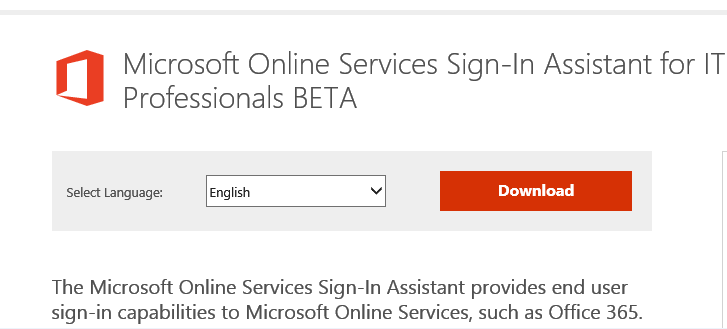
This is actually surprisingly tricky to hunt down and eventually takes you you to a web page described as Sign-in Assistant BETA, hardly confidence inspiring, the earlier 'non beta' version was too old.
http://www.microsoft.com/en-us/download/details.aspx?id=39267
Then how do you know the recently installed cmdlets are up to date, what version they are, or will they be kept up to date, are the cmdlets related to other Windows Azure tooling, which also follows the same mess.
The Web Platform Installer shows that the PowerShell Libraries in this area are a hotch potch of rapidly coded and released software without much thought to the future. This is probably how it is at the moment, but someone needs to take a look at the management of this
These cmdlets should be included in the add/remove features of PowerShell and if you tick them then they should load all the prerequisites and automatically update.I would have hoped for this to be the case by now. I had left office 365 for a year to settle down so that these sorts of problems would already have been ironed out. Alternatively they should just install them anyway as part of the main Windows install. They are pretty safe as you need to have credentials to do anything with them.
On installing the PowerShell Azure cmdlets the installer tells you that must first install Sign-in Assistant 7.
This is actually surprisingly tricky to hunt down and eventually takes you you to a web page described as Sign-in Assistant BETA, hardly confidence inspiring, the earlier 'non beta' version was too old.
http://www.microsoft.com/en-us/download/details.aspx?id=39267
Then how do you know the recently installed cmdlets are up to date, what version they are, or will they be kept up to date, are the cmdlets related to other Windows Azure tooling, which also follows the same mess.
The Web Platform Installer shows that the PowerShell Libraries in this area are a hotch potch of rapidly coded and released software without much thought to the future. This is probably how it is at the moment, but someone needs to take a look at the management of this
These cmdlets should be included in the add/remove features of PowerShell and if you tick them then they should load all the prerequisites and automatically update.I would have hoped for this to be the case by now. I had left office 365 for a year to settle down so that these sorts of problems would already have been ironed out. Alternatively they should just install them anyway as part of the main Windows install. They are pretty safe as you need to have credentials to do anything with them.
Saturday, 28 December 2013
Where have all the Windows Service Packs gone?
Have you noticed the lack of Service Packs for Windows 7 / Server 2008 R2?
We had Service Pack 1 more than 2 years ago and since then just a constant stream of updates. Windows 7 desktops are going to be around for a very long time replacing XP as the de facto Windows version to use in corporate desktops. By the time they expire in 2020(!) hopefully the newer versions of Windows / Android / IOS + current unknown OSs will provide a new paradigm that is better (I have my doubts).
The number of updates every month has stayed steady meaning there is a myriad of updates for a 'fresh' Windows 7 SP1 install. This was brought home the other week when a newly arrived Dell Laptop installed updates and rebooted for a good half an hour. Keeping baselines of updates is becoming unpractical with this number of updates going on. This is a real problem for servers where you want them all patched to the same level without going through a WSUS high frequency update route.
In the past on internal servers we used to apply Service Packs as the building block of Windows build level. If there was a specific reason to apply a patch we would apply it. More often than not it would more likely be a version of the .Net framework linked to an application like SQL Server. Most internal servers are showing vast lists of individual patches required. When servers can obtain typical uptimes of around a year I don't like putting on non required patches and rebooting them every month or so unless there is a very good reason to do so. Rebooting them once per year for a Service Pack seems ideal to me.
The cadence / patch mechanism of Windows releases has changed dramatically over the years. Remember computer magazines with attached disks of NT4 SP3, SP4 or SP6a as a mechanism of distributing patches! Since then we had Windows 2000 which had 4 Service Packs, Server 2003 which brought in the R2 OS refresh cycle, 2008, then 2008 R2 and now 2012 / R2.
If you look at the release dates of recent software we have Server 2012 R2 in 2013 just a year after Server 2012. With Google and Apple adding new features and not just patches with almost every update every few months. MS have been forced to follow suit. I am running Windows 8.1 on my laptop and it is more a Service Pack on Windows 8 than it is a new release (I know there are new features, well hidden by the dumbed down GUI), at least the 8.1 gives a clue to the lack of fundamental changes. But with Server 2012 R2 a whole raft of new server features have been added. It could be the new update regime without Service Packs is better suited to Windows Azure with fully automated patching or they just build new base images containing the patches already incorporated for cloning on a schedule. It might be that Windows 7 / 2008 R2 will never see another Service Pack - in which case installing a new Windows 7 machine could install literally hundreds of updates to bring it up to date. Maybe keeping base images with incorporated selected updates will be the way to go. At the moment I would be happy to install a Windows 7 SP1 desktop and let it catch up on updates using WSUS plus a daily reboot over a few days. With mainstream support for Windows 7 ending in 2015 we really could do with Service Pack by then!
SQL Server and Exchange Server do (currently) have a steady and structured release system of updates and Service Packs making patching easier to plan. It is a pity that Exchange updates have been such poor quality of late. I would rather run reliable old software than up to date software with broken features myself.
Maybe the days of Service Packs are gone. Get a 'new' OS every year instead! I have heard little from MS on the subject but it must be discussed frequently. If so it makes life just a little harder for on premise installations...
We had Service Pack 1 more than 2 years ago and since then just a constant stream of updates. Windows 7 desktops are going to be around for a very long time replacing XP as the de facto Windows version to use in corporate desktops. By the time they expire in 2020(!) hopefully the newer versions of Windows / Android / IOS + current unknown OSs will provide a new paradigm that is better (I have my doubts).
The number of updates every month has stayed steady meaning there is a myriad of updates for a 'fresh' Windows 7 SP1 install. This was brought home the other week when a newly arrived Dell Laptop installed updates and rebooted for a good half an hour. Keeping baselines of updates is becoming unpractical with this number of updates going on. This is a real problem for servers where you want them all patched to the same level without going through a WSUS high frequency update route.
In the past on internal servers we used to apply Service Packs as the building block of Windows build level. If there was a specific reason to apply a patch we would apply it. More often than not it would more likely be a version of the .Net framework linked to an application like SQL Server. Most internal servers are showing vast lists of individual patches required. When servers can obtain typical uptimes of around a year I don't like putting on non required patches and rebooting them every month or so unless there is a very good reason to do so. Rebooting them once per year for a Service Pack seems ideal to me.
The cadence / patch mechanism of Windows releases has changed dramatically over the years. Remember computer magazines with attached disks of NT4 SP3, SP4 or SP6a as a mechanism of distributing patches! Since then we had Windows 2000 which had 4 Service Packs, Server 2003 which brought in the R2 OS refresh cycle, 2008, then 2008 R2 and now 2012 / R2.
If you look at the release dates of recent software we have Server 2012 R2 in 2013 just a year after Server 2012. With Google and Apple adding new features and not just patches with almost every update every few months. MS have been forced to follow suit. I am running Windows 8.1 on my laptop and it is more a Service Pack on Windows 8 than it is a new release (I know there are new features, well hidden by the dumbed down GUI), at least the 8.1 gives a clue to the lack of fundamental changes. But with Server 2012 R2 a whole raft of new server features have been added. It could be the new update regime without Service Packs is better suited to Windows Azure with fully automated patching or they just build new base images containing the patches already incorporated for cloning on a schedule. It might be that Windows 7 / 2008 R2 will never see another Service Pack - in which case installing a new Windows 7 machine could install literally hundreds of updates to bring it up to date. Maybe keeping base images with incorporated selected updates will be the way to go. At the moment I would be happy to install a Windows 7 SP1 desktop and let it catch up on updates using WSUS plus a daily reboot over a few days. With mainstream support for Windows 7 ending in 2015 we really could do with Service Pack by then!
SQL Server and Exchange Server do (currently) have a steady and structured release system of updates and Service Packs making patching easier to plan. It is a pity that Exchange updates have been such poor quality of late. I would rather run reliable old software than up to date software with broken features myself.
Maybe the days of Service Packs are gone. Get a 'new' OS every year instead! I have heard little from MS on the subject but it must be discussed frequently. If so it makes life just a little harder for on premise installations...
Subscribe to:
Posts (Atom)