Showing posts with label Backup. Show all posts

Monday, 2 March 2015

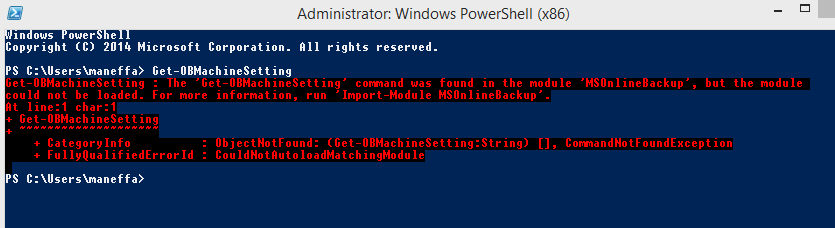
Azure OnlineBackup cmdlets only run in 64-bit powershell

Excellent news when the it became possible to backup to Windows Azure your Windows 8 Client machines and not just Servers.
http://azure.microsoft.com/blog/2014/12/16/azure-backup-announcing-support-for-windows-client-operating-system/

I downloaded the software on my laptop and ran a backup from the GUI, it worked just the same as a server - excellent. Then I thought I would do some automation from PowerShell cmdlets.

They didn't work...Here is an example.
Get-OBMachineSetting

Module could not be loaded error message. This was interesting. After poking around for a while I found nothing obviously amiss.

I changed tack slightly and tried the same thing in Sapien PowerShell Studio. That worked fine.
It suddenly dawned on me - I had pinned the 32-bit PowerShell version to the taskbar instead of the 64-bit, and these cmdlets are 64-bit only! The default PowerShell version on a 64-bit computer is 64-bit so I had 'cleverly' managed to overwrite this in customising my taskbar! Of course you may come across some cmdlets which are 32-bit only so it is something to bear in mind. Looking at the PowerShell Window title it was obvious after the event as it has (x86) in the title, but I had personally never seen any difference on cmdlets I had used between 32 and 64-bit.

Reminds me of the subtle differences between 32 and 64-bit versions of ODBC, which first was a significant problem when 64-bit versions of server came out in Server 2008, and you had to use %windir%\syswow64\odbcad32.exe instead of just typing ODBC if you wanted to use the 32 bit driver.
Thankfully if you type ODBC now MS have helpfully documented both versions.


Wednesday, 22 May 2013

Azure backup Start-OBBackup does not reliably emit errors

I noticed that the Windows Azure Online backup command does not always emit an error when the backup does not successfully complete in say a Try / Catch block.

This was most apparent when the job was cancelled/failed at an early stage during the backup.

As such it is easier to look through the output of the backup command and make sure it contains the text "The backup operation completed successfully". The output only contains this string if the backup completes successfully.

eg

$SuccessString = "The backup operation completed successfully"

$OnlineBackupOutput = Get-OBPolicy | Start-OBBackup
$OnlineBackupOutputString = $OnlineBackupOutput | Out-String

Then you can check
if ($OnlineBackupOutputString -match $SuccessString)
# ok
else
error condition...

Sunday, 28 April 2013

Windows Azure Backup Setup via Powershell

This a follow on article from

http://maneffa-it.blogspot.co.uk/2012/05/new-features-in-windows-server-2012-for.html

Windows Azure Backup Vault is a great way to get an incremental and compressed off site backup. In my testing of the preview over several months and 100 gb  it 'just worked', and was superior to all the other 3rd party mechanisms I tried.

Here is the PowerShell needed to set up a Windows Azure Backup policy. It is mostly self explanatory, and assumes you have already saved a certificate into the store on the local machine.

You will need to create and upload a service certificate - here is an example to create a certificate, make sure you use a recent version of makecert as some older versions I had lying about did not like the option for certificate length, but failed silently!

makecert.exe -r -pe -n CN=mybackup -ss my -sr localmachine -eku 1.3.6.1.5.5.7.3.2 -len 2048 -e 04/24/2016 mybackup.cer

Now login to the Azure portal and upload this new certificate to your Backup vault. You are now ready to set up the backup.

Firstly set up the server using the certificate and your chosen encryption password.
$cert = Get-OBCertificateListFromLocalStore
$cert

CertificateThumbprint : <thumprint>
IssuedTo              : backup
IssuedBy              : backup
ExpirationDate        : 24/04/2016 00:00:00
IntendedPurpose       : Client Authentication

$item = Get-OBRecoveryService -Certificate $cert[0]
Start-OBRegistration  -RecoveryService $item[0]

ConvertTo-SecureString -String very_long_password_goes_here -AsPlainText -Force | Set-OBMachineSetting

Now set up the backup. here we are setting a backup of the directory d:\azure_backup, which I am robocopying files into during the day and the backup takes place each night at 2 am. The files are relatively small and static so robocopy ensures we only copy updated versions.

$mon = [System.DayOfWeek]::Monday
$tue = [System.DayOfWeek]::Tuesday
$wed = [System.DayOfWeek]::Wednesday
$thu = [System.DayOfWeek]::Thursday
$fri = [System.DayOfWeek]::Friday
$sat = [System.DayOfWeek]::Saturday
$sun = [System.DayOfWeek]::Sunday

$policy = New-OBPolicy
$filespec = New-OBFileSpec -FileSpec d:\azure_backup
$sched = New-OBSchedule -DaysofWeek Monday,Tuesday,Wednesday,Thursday,Friday,Saturday,Sunday -TimesofDay 02:00
$ret = New-OBRetentionPolicy -RetentionDays 30
Add-OBFileSpec -Policy $policy -FileSpec $filespec
Set-OBSchedule -policy $policy -schedule $sched
Set-OBRetentionPolicy -policy $policy -retentionpolicy $ret
Set-OBPolicy $policy

This next line sets the machine to throttle the uplink bandwidth to 10 meg during working hours and 50 meg outside working hours. This server does not use a proxy, although you can specify a proxy if that is how your system is set up. Remember most ADSL type connections have very limited uplink bandwidth compared to this fibre connection so if you are using ADSL make sure you do not swamp the uplink bandwidth as this will dramatically affect downloading as well!

Set-OBMachineSetting -WorkDay $mon, $tue, $wed, $thu, $fri, $sat, $sun -StartWorkHour "7:00:00" -EndWorkHour "22:00:00" -WorkHourBandwidth (10000*1024) -NonWorkHourBandwidth (50000*1024)

The first backup will take a long time, but subsequent backups will be much shorter.
Wednesday, 17 April 2013

Upgraded Server 2008 to 2008R2 Hyper-V backup failure

This setup is Server 2008 UPGRADED to Server 2008R2 + SP1 + updates. Backing up perfectly using WSB admin utility.
Hyper-V was installed and the VMs put on their own volume.
Backup started failing only when this volume was backed up. The error initially showed up as:
image
VSSAdmin list writers showed Hyper-V writer problem.
The source error was one I had never seen before:
No snapshots to revert were found for virtual machine….
After searching around the answer was to enable Automount on new volumes...
image
After that the backup started working perfectly again…
OS upgrades often leave these gotchas behind so it can be more time effective in the longer run for a fresh install.

Friday, 8 February 2013

Restore of physical Dell Server 2008R2 with Perc H700 to VM fails with stop 7b inaccessible boot device

I have come across this several times in the last year and decided to document the answer myself so I can find it more quickly next time! The best answer is to be found here if you want full details:
http://www.minasi.com/forum/topic.asp?TOPIC_ID=31980

The scenario is:
Take a windows backup of a Dell (and probably other manufacturers) Server 2008R2 with a PERC (or equivalent) disk controller:

eg wbadmin start backup -backuptarget:\\remoteserver\remoteshare -include:c:,d:,e:  -allcritical -vssfull

This creates a VHD(s).

Then go to Hyper-V and restore this backup to a new VM.

Lo and behold when you boot the VM you will get a stop 7b - inaccesible boot device.

Then mess around looking for the answer for half an hour.

The answer is simple.
Mount the VHD
Load the registry of your newly restored server.
Go to:
 HKLM\System\ControlSet001\Services\Intelide and change Start to 0
 HKLM\System\ControlSet001\Services\Pciide and change Start to 3

Restart - it boots perfectly. Why the bare metal restore cannot sort out the above automatically I just cannot fathom. This type of problem has been going on for ages and plagued moving XP/2003 disks to different hardware. The bizarre thing is that on NT4 you could manually 'preload' another driver (I admit the number of drivers was very limited!) and move to different hardware more simply - so much for plug and play! I should point out that using disk2vhd always works perfectly in the above scenario so it must have code to workaround the problem, although it does have the advantage of guaranteeing the hardware that will be presented to to the VM!

I have not tried to see if it is 'fixed' on Server 2012, but it probably isn't.

Saturday, 24 November 2012

Windows 8 File History bandwidth stealer!

I recently turned on Windows 8 file history on my laptop and pointed the ‘backup’ to my main server using a UNC share. I wandered at the time if the system had any logic about running on low bandwidth/different subnet connections. I didn't need to wonder for long as next day at home with only an ADSL connection to the same server instead of the gigabit LAN all remote connections were running very slow. The router showed uplink bandwidth maxed out. I immediately suspected File History and turned the service off and the bandwidth was released. Despite this problem I did like the feature so I knocked up a quick and dirty solution so it only worked on the same subnet as the LAN.
First of all I removed the triggers from the File History Service so it couldn't start on any triggers. The triggers are Group Policy Triggers but I just removed them anyway and set the service to manual. In an elevated command window type
sc qtriggerinfo “fhsvc” delete
image
You should not remove these triggers without discussing with your syasdmins first!
So now the service was set to manual and would never autostart (or so I thought...).
I then created a very simple and crude powershell ps1 file that gets triggered at computer startup and sleeps for 5 minutes to allow everything else to startup. My Laptop has a DHCP reservation so it always gets the same address but you could do something much more sophisticated than below. I always prefer to pipe powershell to strings as you can work with strings more easily. My wired connection has been renamed to Ethernet so don’t copy this code directly.
The powershell looks something like this:
Start-Sleep -s 300
$IP_Info = Get-NetIPAddress | Where-Object {$_.InterfaceAlias -eq "ethernet" -and $_.AddressFamily -eq "ipv4" } | out-string
if ($IP_Info -match "200.1.1.250")
{
start-service "file history service"
}
else
{
stop-service  "file history service"
}
Set-Service "fhsvc" -startuptype "manual"

The stop service is not required as it theoretically never starts but does not do any harm. Setting the startuptype to manual is required as I noticed the service always sets itself back to autostart whenever it is started!
This is saved in a .ps1 file and run as a high permissions scheduled task on computer startup, After 5 minutes it starts the service if on the same subnet as the server. I do not need to think any more about manual switching on and off.
I think there should be an option to limit the bandwidth/stop the service/multiple backup targets depending on subnet in certain connection scenarios. Maybe windows 8.5…

Thursday, 24 May 2012

New features in Windows Server 2012 for medium size enterprises


Windows Server 2012 online backup

(Note: this commentary is based on beta software and is subject to change)

I have been looking round for some time for a new backup system on a simple file server/print server type server that meets the following criteria:
  • Reliability – something that just works every day without intervention, and lets you know when there is a problem. Many expensive backups systems are overly complex and require intervention.
  • Offsite storage – preferably pre-compressed and encrypted before departure to reduce bandwidth and provide guaranteed data safety once the data has left premises.
  • Multiple versions of backup - so you can restore files from specific days.
  • Integrity check of backed up data to guarantee it can be restored.
  • Incremental backups –not in the true sense of the terminology but a system that only backs up changes at block level.
  • Cheap to buy – dedicated backup software is far more expensive than it should be.
  • Scriptable – for automation .
I have tested various lower cost software solutions that backup to the cloud, frequently using Amazon as a storage medium. None of them did exactly what I was looking for or were robust enough to employ as an enterprise solution in my opinion. I was particularly concerned of the quality of the software that deals with ‘below the waterline’ activities such as the VSS module.

After a while I wished that Microsoft would modify the excellent Windows Server Backup wbadmin Server Backup Utility (that I have used very successfully since Server 2008 on tens of thousands of backups) to use Azure or Skydrive storage, or something similar as the backup target. My prayers were answered when I read this article that Microsoft were going to do just that. Maybe this has been a common request and I wasn’t alone!
http://blogs.technet.com/b/windowsserver/archive/2012/03/28/microsoft-online-backup-service.aspx
I put my name down on Microsoft Connect for the free beta trial and subsequently got a key. I created a W8 Beta VM and installed the software/set up the Microsoft storage account in about 10 minutes. I am not going to tell you how to setup the software as the link above tells you everything you need to know to install (check the official documentation after RTM) and it is very simple. You will also find this beta documentation very helpful, especially for scripting information (again, may change after RTM).
http://www.microsoft.com/en-us/download/details.aspx?id=29005

The only problem was the 10gb cloud storage limit, which is hardly enough to trial a real fileserver, but this was soon lifted to 100gb, which makes the test adequately realistic.

I loaded some test data and…it just worked. I left it for a few days and recovered some data and …it just worked. I had chosen some highly compressible data to backup and it was being compressed to about ¼ of its original size.

As a version 1 piece of software this is a great effort. Obvious omissions are bare metal recovery and support for Exchange / SQL Server. I can live without direct bare metal recovery on a simple fileserver as if you are following good practice and separate the OS and Data onto different volumes, you can effectively perform a bare metal recovery – it just takes longer to recover.

My suggestion would be to back up the C = OS drive separately using normal backup (wbadmin) and store this OS backup on the D (Data drive) then backup the whole D drive using online backup
Backup 1 – using wbadmin– backup OS volume only to say D = Data drive
C:\Users\Administrator>wbadmin start backup -backuptarget:d: -include:c: -allcritical -vssfull


Backup2 – Online backup of D = Data drive (also includes OS backup) to Microsoft cloud

Bare metal recovery should be simple.

1) From the online backup console start recovering the WindowsImageBackup directory of C (= OS) to a file share, VHD, USB – whatever is your preference

2) Put a Windows Server 2012 DVD in a server and take the recovery option using the downloaded WindowsImageBackup folder as the recovery media target

3) Restore the OS

4) From the newly restored machine restore the D=Data drives etc from cloud storage

It is not clear whether this new backup feature will ever support ‘transaction log based applications’ such as SQL Server and Exchange. The restore module of Exchange is for example very specific in what it will restore. This new online backup feature looks excellent, and hopefully the storage pricing will be reasonable.