Excellent news when the it became possible to backup to Windows Azure your Windows 8 Client machines and not just Servers.
http://azure.microsoft.com/blog/2014/12/16/azure-backup-announcing-support-for-windows-client-operating-system/
I downloaded the software on my laptop and ran a backup from the GUI, it worked just the same as a server - excellent. Then I thought I would do some automation from PowerShell cmdlets.
They didn't work...Here is an example.
Get-OBMachineSetting
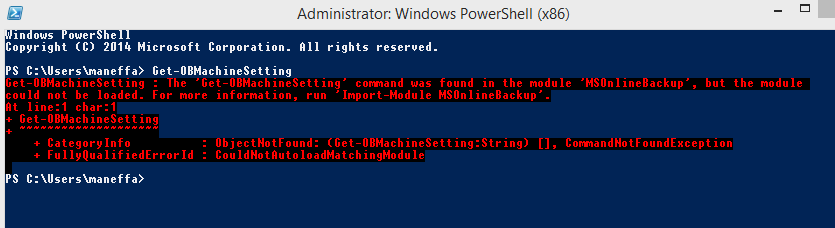
Module could not be loaded error message. This was interesting. After poking around for a while I found nothing obviously amiss.
I changed tack slightly and tried the same thing in Sapien PowerShell Studio. That worked fine.
It suddenly dawned on me - I had pinned the 32-bit PowerShell version to the taskbar instead of the 64-bit, and these cmdlets are 64-bit only! The default PowerShell version on a 64-bit computer is 64-bit so I had 'cleverly' managed to overwrite this in customising my taskbar! Of course you may come across some cmdlets which are 32-bit only so it is something to bear in mind. Looking at the PowerShell Window title it was obvious after the event as it has (x86) in the title, but I had personally never seen any difference on cmdlets I had used between 32 and 64-bit.
Reminds me of the subtle differences between 32 and 64-bit versions of ODBC, which first was a significant problem when 64-bit versions of server came out in Server 2008, and you had to use %windir%\syswow64\odbcad32.exe instead of just typing ODBC if you wanted to use the 32 bit driver.
Thankfully if you type ODBC now MS have helpfully documented both versions.
Showing posts with label Powershell. Show all posts
Monday, 2 March 2015
Wednesday, 15 January 2014
Office 365 UPN User Principal Name not updated after first active directory sync
A new user assigned an Office 365 License could not log on to Office 365 Word and Excel etc.
It soon became obvious that that login 'username' was wrong on Office 365. This was the first time I had encountered this problem.
The logon should have been bloggsj@mydomain.com but was showing joeb@mydomain.com in Office 365.
I asked a colleague to check every attribute on AD and there were a couple of attributes that matched the old format so these were 'corrected'. A quick manual sync and ... no change. Then I checked the Active Directory Sync status and that showed no errors or exceptions.
After some research I found that this UPN attribute, a type of primary key for the logon, is set at first sync and not updated subsequently. The only way to change it is with PowerShell. I had reinstalled my laptop from scratch recently with Windows 8.1 and there was no PowerShell tooling installed. After installing the appropriate PowerShell modules (see below) I changed the username as below.
It soon became obvious that that login 'username' was wrong on Office 365. This was the first time I had encountered this problem.
The logon should have been bloggsj@mydomain.com but was showing joeb@mydomain.com in Office 365.
I asked a colleague to check every attribute on AD and there were a couple of attributes that matched the old format so these were 'corrected'. A quick manual sync and ... no change. Then I checked the Active Directory Sync status and that showed no errors or exceptions.
After some research I found that this UPN attribute, a type of primary key for the logon, is set at first sync and not updated subsequently. The only way to change it is with PowerShell. I had reinstalled my laptop from scratch recently with Windows 8.1 and there was no PowerShell tooling installed. After installing the appropriate PowerShell modules (see below) I changed the username as below.
Set-MsolUserPrincipalName -UserPrincipalName [CurrentUPN] -NewUserPrincipalName [NewUPN]
The user was able to log on immediately and start using Office 365.
This highlighted (at the time of writing) the poor state of tooling for Azure AD, and indeed other PowerShell features.
On installing the PowerShell Azure cmdlets the installer tells you that must first install Sign-in Assistant 7.
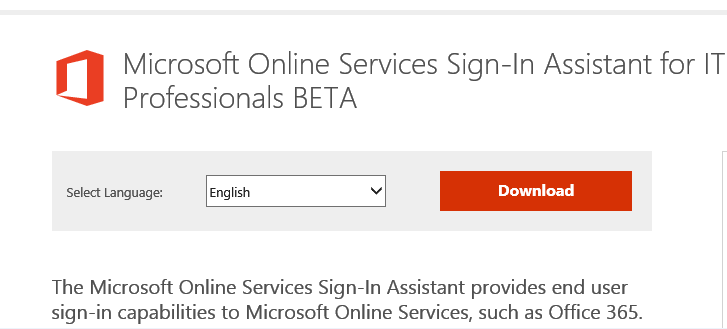
This is actually surprisingly tricky to hunt down and eventually takes you you to a web page described as Sign-in Assistant BETA, hardly confidence inspiring, the earlier 'non beta' version was too old.
http://www.microsoft.com/en-us/download/details.aspx?id=39267
Then how do you know the recently installed cmdlets are up to date, what version they are, or will they be kept up to date, are the cmdlets related to other Windows Azure tooling, which also follows the same mess.
The Web Platform Installer shows that the PowerShell Libraries in this area are a hotch potch of rapidly coded and released software without much thought to the future. This is probably how it is at the moment, but someone needs to take a look at the management of this
These cmdlets should be included in the add/remove features of PowerShell and if you tick them then they should load all the prerequisites and automatically update.I would have hoped for this to be the case by now. I had left office 365 for a year to settle down so that these sorts of problems would already have been ironed out. Alternatively they should just install them anyway as part of the main Windows install. They are pretty safe as you need to have credentials to do anything with them.
On installing the PowerShell Azure cmdlets the installer tells you that must first install Sign-in Assistant 7.
This is actually surprisingly tricky to hunt down and eventually takes you you to a web page described as Sign-in Assistant BETA, hardly confidence inspiring, the earlier 'non beta' version was too old.
http://www.microsoft.com/en-us/download/details.aspx?id=39267
Then how do you know the recently installed cmdlets are up to date, what version they are, or will they be kept up to date, are the cmdlets related to other Windows Azure tooling, which also follows the same mess.
The Web Platform Installer shows that the PowerShell Libraries in this area are a hotch potch of rapidly coded and released software without much thought to the future. This is probably how it is at the moment, but someone needs to take a look at the management of this
These cmdlets should be included in the add/remove features of PowerShell and if you tick them then they should load all the prerequisites and automatically update.I would have hoped for this to be the case by now. I had left office 365 for a year to settle down so that these sorts of problems would already have been ironed out. Alternatively they should just install them anyway as part of the main Windows install. They are pretty safe as you need to have credentials to do anything with them.
Friday, 11 January 2013
Powershell makes AD replication status monitoring trivial
Powershell is making monitoring various components much easier than in previous versions of Windows without third party tools.
A great example of this is Active Directory replication. With 15 sites to keep track of I run these commands on a schedule task every 15 mins to create a handy text file on the desktop of the state of AD replication.
repadmin /replsum > replsum.txt
repadmin /showrepl > showrepl.txt
So if there are any issues I can get a quick overview of the summary and detail state of AD replication.
But what I am really interested in knowing is when there is an active directory replication failure for further investigation. This can be achieved and eg emailed in a timely fashion very easily in a few lines of Powershell.
The commands below run repadmin and put the results into an array, then parse the array looking for lines with errors by seeing if the lines are longer in length than lines having no error text. Not pretty but it works well. Note the code -like *dc* which only checks lines with the letters dc contained in them and ignoring any other lines. If all your domain controllers have some other naming convention you would need to change that.
$replsumerror = $false
$arrayreplsum = repadmin /replsum
for($i = 0; $i -le $arrayreplsum.length -1; $i++) {if(($arrayreplsum[$i].length -gt 57) -and ($arrayreplsum[$i] -like "*dc*" )) {$replsumerror = $true}}
if ($replsumerror -eq $true) ...do some event - eg email
I add this Powershell script on a 15 minute scheduled task and we get easy AD replication monitoring.
I have been disappointed with new Server 2012 Get-ADReplicationFailure cmdlet as it always returns the last error, which could be seconds or years ago. It could do with an option to show only 'current errors'
in a similar fashion to the repadmin /replsum /errorsonly switch or something similar.
A great example of this is Active Directory replication. With 15 sites to keep track of I run these commands on a schedule task every 15 mins to create a handy text file on the desktop of the state of AD replication.
repadmin /replsum > replsum.txt
repadmin /showrepl > showrepl.txt
So if there are any issues I can get a quick overview of the summary and detail state of AD replication.
But what I am really interested in knowing is when there is an active directory replication failure for further investigation. This can be achieved and eg emailed in a timely fashion very easily in a few lines of Powershell.
The commands below run repadmin and put the results into an array, then parse the array looking for lines with errors by seeing if the lines are longer in length than lines having no error text. Not pretty but it works well. Note the code -like *dc* which only checks lines with the letters dc contained in them and ignoring any other lines. If all your domain controllers have some other naming convention you would need to change that.
$replsumerror = $false
$arrayreplsum = repadmin /replsum
for($i = 0; $i -le $arrayreplsum.length -1; $i++) {if(($arrayreplsum[$i].length -gt 57) -and ($arrayreplsum[$i] -like "*dc*" )) {$replsumerror = $true}}
if ($replsumerror -eq $true) ...do some event - eg email
I add this Powershell script on a 15 minute scheduled task and we get easy AD replication monitoring.
I have been disappointed with new Server 2012 Get-ADReplicationFailure cmdlet as it always returns the last error, which could be seconds or years ago. It could do with an option to show only 'current errors'
in a similar fashion to the repadmin /replsum /errorsonly switch or something similar.
Subscribe to:
Posts (Atom)