It soon became obvious that that login 'username' was wrong on Office 365. This was the first time I had encountered this problem.
The logon should have been bloggsj@mydomain.com but was showing joeb@mydomain.com in Office 365.
I asked a colleague to check every attribute on AD and there were a couple of attributes that matched the old format so these were 'corrected'. A quick manual sync and ... no change. Then I checked the Active Directory Sync status and that showed no errors or exceptions.
After some research I found that this UPN attribute, a type of primary key for the logon, is set at first sync and not updated subsequently. The only way to change it is with PowerShell. I had reinstalled my laptop from scratch recently with Windows 8.1 and there was no PowerShell tooling installed. After installing the appropriate PowerShell modules (see below) I changed the username as below.
Set-MsolUserPrincipalName -UserPrincipalName [CurrentUPN] -NewUserPrincipalName [NewUPN]
The user was able to log on immediately and start using Office 365.
This highlighted (at the time of writing) the poor state of tooling for Azure AD, and indeed other PowerShell features.
On installing the PowerShell Azure cmdlets the installer tells you that must first install Sign-in Assistant 7.
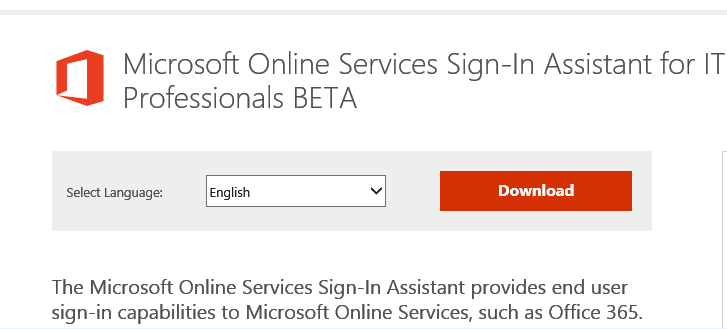
This is actually surprisingly tricky to hunt down and eventually takes you you to a web page described as Sign-in Assistant BETA, hardly confidence inspiring, the earlier 'non beta' version was too old.
http://www.microsoft.com/en-us/download/details.aspx?id=39267
Then how do you know the recently installed cmdlets are up to date, what version they are, or will they be kept up to date, are the cmdlets related to other Windows Azure tooling, which also follows the same mess.
The Web Platform Installer shows that the PowerShell Libraries in this area are a hotch potch of rapidly coded and released software without much thought to the future. This is probably how it is at the moment, but someone needs to take a look at the management of this
These cmdlets should be included in the add/remove features of PowerShell and if you tick them then they should load all the prerequisites and automatically update.I would have hoped for this to be the case by now. I had left office 365 for a year to settle down so that these sorts of problems would already have been ironed out. Alternatively they should just install them anyway as part of the main Windows install. They are pretty safe as you need to have credentials to do anything with them.
On installing the PowerShell Azure cmdlets the installer tells you that must first install Sign-in Assistant 7.
This is actually surprisingly tricky to hunt down and eventually takes you you to a web page described as Sign-in Assistant BETA, hardly confidence inspiring, the earlier 'non beta' version was too old.
http://www.microsoft.com/en-us/download/details.aspx?id=39267
Then how do you know the recently installed cmdlets are up to date, what version they are, or will they be kept up to date, are the cmdlets related to other Windows Azure tooling, which also follows the same mess.
The Web Platform Installer shows that the PowerShell Libraries in this area are a hotch potch of rapidly coded and released software without much thought to the future. This is probably how it is at the moment, but someone needs to take a look at the management of this
These cmdlets should be included in the add/remove features of PowerShell and if you tick them then they should load all the prerequisites and automatically update.I would have hoped for this to be the case by now. I had left office 365 for a year to settle down so that these sorts of problems would already have been ironed out. Alternatively they should just install them anyway as part of the main Windows install. They are pretty safe as you need to have credentials to do anything with them.
