Wednesday, 15 January 2014

Office 365 UPN User Principal Name not updated after first active directory sync

A new user assigned an Office 365 License could not log on to Office 365 Word and Excel etc.
It soon became obvious that that login 'username' was wrong on Office 365. This was the first time I had encountered this problem.

The logon should have been bloggsj@mydomain.com but was showing joeb@mydomain.com in Office 365.

I asked a colleague to check every attribute on AD and there were a couple of attributes that matched the old format so these were 'corrected'. A quick manual sync and ... no change. Then I checked the Active Directory Sync status and that showed no errors or exceptions.

After some research I found that this UPN attribute, a type of primary key for the logon, is set at first sync and not updated subsequently. The only way to change it is with PowerShell. I had reinstalled my laptop from scratch  recently with Windows 8.1 and there was no PowerShell tooling installed. After installing the appropriate PowerShell modules (see below) I changed the username as below.

Set-MsolUserPrincipalName -UserPrincipalName [CurrentUPN] -NewUserPrincipalName [NewUPN]

The user was able to log on immediately and start using Office 365.

This highlighted (at the time of writing) the poor state of tooling for Azure AD, and indeed other PowerShell features.

On installing the PowerShell Azure cmdlets the installer tells you that must first install Sign-in Assistant 7.

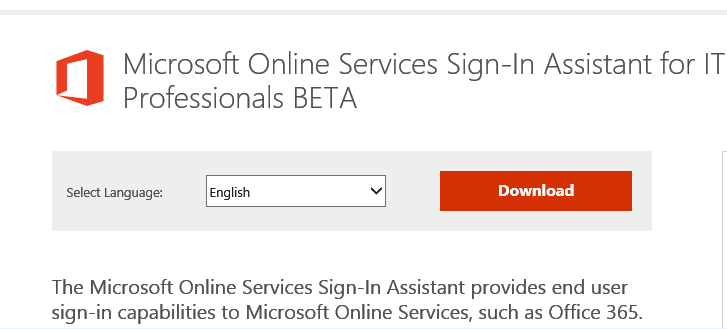
This is actually surprisingly tricky to hunt down and eventually takes you you to a web page described as Sign-in Assistant BETA, hardly confidence inspiring, the earlier 'non beta' version was too old.

http://www.microsoft.com/en-us/download/details.aspx?id=39267

Then how do you know the recently installed cmdlets are up to date, what version they are, or will they be kept up to date, are the cmdlets related to other Windows Azure tooling, which also follows the same mess.
The Web Platform Installer shows that the PowerShell Libraries in this area are a hotch potch of rapidly coded and released software without much thought to the future. This is probably how it is at the moment, but someone needs to take a look at the management of this

These cmdlets should be included in the add/remove features of PowerShell and if you tick them then they should load all the prerequisites and automatically update.I would have hoped for this to be the case by now. I had left office 365 for a year to settle down so that these sorts of problems would already have been ironed out. Alternatively they should just install them anyway as part of the main Windows install. They are pretty safe as you need to have credentials to do anything with them.

Saturday, 28 December 2013

Where have all the Windows Service Packs gone?

Have you noticed the lack of Service Packs for Windows 7 / Server 2008 R2?

We had Service Pack 1 more than 2 years ago and since then just a constant stream of updates. Windows 7 desktops are going to be around for a very long time replacing XP as the de facto Windows version to use in corporate desktops. By the time they expire in 2020(!) hopefully the newer versions of Windows / Android / IOS + current unknown OSs will provide a new paradigm that is better (I have my doubts).

The number of updates every month has stayed steady meaning there is a myriad of updates for a 'fresh' Windows 7 SP1 install. This was brought home the other week when a newly arrived Dell Laptop installed updates and rebooted for a good half an hour. Keeping baselines of updates is becoming unpractical with this number of updates going on. This is a real problem for servers where you want them all patched to the same level without going through a WSUS high frequency update route.

In the past on internal servers we used to apply Service Packs as the building block of Windows build level. If there was a specific reason to apply a patch we would apply it. More often than not it would more likely be a version of the .Net framework linked to an application like SQL Server. Most internal servers are showing vast lists of individual patches required. When servers can obtain typical uptimes of around a year I don't like putting on non required patches and rebooting them every month or so unless there is a very good reason to do so. Rebooting them once per year for a Service Pack seems ideal to me.

The cadence / patch mechanism of Windows releases has changed dramatically over the years. Remember computer magazines with attached disks of  NT4 SP3, SP4 or SP6a as a mechanism of distributing patches! Since then we had Windows 2000 which had 4 Service Packs, Server 2003 which brought in the R2 OS refresh cycle, 2008, then 2008 R2 and now 2012 / R2.

If you look at the release dates of recent software we have Server 2012 R2 in 2013 just a year after Server 2012. With Google and Apple adding new features and not just patches with almost every update every few months. MS have been forced to follow suit. I am running Windows 8.1 on my laptop and it is more a Service Pack on Windows 8 than it is a new release (I know there are new features, well hidden by the dumbed down GUI), at least the 8.1 gives a clue to the lack of fundamental changes. But with Server 2012 R2 a whole raft of new server features have been added. It could be the new update regime without Service Packs is better suited to Windows Azure with fully automated patching or they just build new base images containing the patches already incorporated for cloning on a schedule. It might be that Windows 7 / 2008 R2 will never see another Service Pack - in which case installing a new Windows 7 machine could install literally hundreds of updates to bring it up to date. Maybe keeping base images with incorporated selected updates will be the way to go. At the moment I would be happy to install a Windows 7 SP1 desktop and let it catch up on updates using WSUS plus a daily reboot over a few days. With mainstream support for Windows 7 ending in 2015 we really could do with Service Pack by then!

SQL Server and Exchange Server do (currently) have a steady and structured release system of updates and Service Packs making patching easier to plan. It is a pity that Exchange updates have been such poor quality of late. I would rather run reliable old software than up to date software with broken features myself.

Maybe the days of Service Packs are gone. Get a 'new' OS every year instead! I have heard little from MS on the subject but it must be discussed frequently. If so it makes life just a little harder for on premise installations...

Friday, 8 November 2013

Server 2012 Hyper-V Live migration poor GUI error message

My colleague recently set up the networking on a backup machine that would be used to accept Server 2012 live migrations. The network was teamed using LACP and we always use the naming convention VMLAG for the VM Ethernet switch.

When I tested live migration from the GUI there was a problem - the error message was the virtual machine was not compatible. The target server was significantly older than the source and had never run a VM before so we started investigating hardware.

We looked through the specifications of the (significantly different Dell models) servers in question and they both met all the requirements of live migration. We rebooted and checked the BIOS and everything was switched on for virtualisation / live migration.

After some head scratching I decided to run the same command in Powershell and lo and behold the real error was displayed:
The original GUI message was still there:
The virtual machine 'XNMTEST' is not compatible with physical computer 'BACKUPSERVER'
But Powershell gave some crucial extra information relating to the error:
Could not find Ethernet Switch VMLAG


I immediately looked more closely at the target server. My colleague had put a space in the VM networking name!

Instead of VMLAG he had typed VM<space>LAG. I renamed the switch to match the source server and it worked perfectly.

2 morals to this story:
Double check the obvious first -  looking at processor specifications and BIOS settings was not required.

Use Powershell to get better error messages - the GUI message whilst technically accurate was somewhat misleading! The GUI should be modified to give the same error messages as Powershell instead of (presumably) just the highest level error.


Saturday, 2 November 2013

Ola Hallengren SQL Server Backup Script adds support for MS Shipped objects - eg merge replication metadata tables

SQL Server Merge replication makes very heavy use of metadata tables, and these are likely to become fragmented quickly. My own totally unscientific findings are that regular maintenance of these tables can give a 10% reduction in sync times.
If you want to know more about the subject read this article from BOL:
http://msdn.microsoft.com/en-us/library/ms151789(v=sql.105).aspx

You should be aware that most maintenance systems including the excellent and very popular Ola Hallengren solution http://ola.hallengren.com and the built in SQL Server Maintenance Plan system did not include the merge replication metadata tables.

Whilst investigating Ola's solution I noted that it did not include merge metadata tables which are marked as MS_Shipped objects, so I contacted Ola and he listened carefully, asked some very good questions and decided to add as a feature. The feature is now available in his build and you need to look at the parameter MSShipped objects.

It is commonplace to say the SQL Server built in Maintenance Plan is poor, as it rebuilds all indexes without regard to levels of fragmentation or size of tables etc. This is true but if you are not running 24 x 7 and the extra log generation is not going to create many problems (remember you will be creating/backing up a very large log file with the the built in maintenance plan in full recovery) and you have some disk IO to burn it is a good start and certainly much better than nothing. Take the option for compression if you have a supported version (SQL Server 2008R2 Standard and higher).

Whatever you are using check fragmentation of merge metadata tables.
You can read more here:
http://www.brentozar.com/blitz/merge-replication-with-infinite-history/


Tuesday, 24 September 2013

Network and online backup problems after upgrading Server 2012 to 2012 R2 upgrade

I recently upgraded my Server 2012 'Workstation' to 2012 R2 RTM.

The system is mainly used for testing changes etc and is an old rack mounted Dell 610 - 48gb RAM with a solid state boot disk and filled with as many 7.2K cheap/large capacity disks as it will hold in RAID 6 to give reasonable disk IO and large capacity. It also has a 4 port Intel network card with a couple of the ports teamed together mainly to test that the new MS NIC teaming works as intended. The NIC team has worked flawlessly for a year laying to rest the Server 2003 scalable networking debacle.

Following upgrade from Server 2012 to Server 2012 R2 I couldn't access it via remote desktop so I went in through the Dell Remote Access Card (DRAC) and looked at the console. After a few minutes poking about it I had worked out that the NIC teaming had been removed and the network set to DHCP. I was able to connect to the DHCP IP address and sorted it out from there. I would say this behavior is very unfortunate in enterprise computing. Normally I would have said it was a one off but the same thing happened a few years ago when upgrading some Server 2008 to Server 2008 R2 Dell Servers, which lost their network card settings during upgrade. If the server is remote and you don't have a remote access tool like the DRAC then you could be in a lot of trouble. Worth watching out for.

I was looking to change the Windows Azure Backup Policy on the machine after upgrade but it wouldn't change, and kept coming up with a  generic error after a timeout period. I deleted it and recreated it from scratch and it is now running fine. I cannot imagine how that backup software changed between versions as it was a manual download from the internet but there you go.

Apart from these upgrade errors the Server 2012 R2 release is looking good with many new features.

Sunday, 25 August 2013

EnableWriteOrderPreservationAcrossDisks not in Hyper-V Replica GUI or set ON by default for new replicas

One of the most frustrating things about Hyper-V Replica (which I believe is the best feature of Hyper-V Server 2012 and truly a game changer to SMBs) is the lack of totally CLEAR and UNAMBIGUOUS up front information relating to the support of  mission critical systems like SQL Server and Exchange.

Both SQL Server and Exchange databases have one thing in common - they write out to a log whenever data is committed before they write out to the main data store. This ensures consistency under all recovery situations with excellent performance and the ability to replay transactions etc etc. Best practice is to put the logs and databases onto 'different disks' to improve performance/recovery. In the context of Hyper-V this is interesting as it means placing a Hyper-V vhd(x) file onto it's own physical disk. Either way that is a different discussion.

However, this is the undoing of Hyper-V Replica since it does not guarantee that writes to different disks will be applied to the replica in the same order. This could create disastrous results where the log and main data store are subtly out of sync whilst fooling the administrators of the system that everything is working perfectly. That is the worst possible scenario. During a planned fail-over when the primary is closed down in an orderly manner it would appear to work beautifully as the disks would all be sync'd but come the day of disaster and the writes have not been applied in the correct sequence it would not work correctly and you are out of business - literally. There should be far more on this subject.

The worst aspect is that you have to know the problem might exist to start hunting down the answer and that means you will be trawling around for a while looking for reasonably definitive information. Those unaware of the foibles of SQL, Exchange et al are waiting to fall at the first unplanned fail-over.

At time of writing I  found that SQL Server is supported
http://support.microsoft.com/kb/956893
and Exchange is not supported
http://blogs.technet.com/b/rmilne/archive/2013/07/29/exchange-and-hyper-v-replica-support.aspx

However, I cannot see any reason why Exchange not using DAGs would not work perfectly. I suspect that DAGs are the supported option so that is what you are forced to use. The Hyper-V replica is certainly much easier to set up and maintain for smaller organisations with say 1 Exchange server than a DAG. I can see Hyper-V replica and DAGs together would be a very poor idea.
When Hyper-V 1 first came out (remember the 180 day promise after Server 2008 RTM!) I ran a Blackberry Enterprise Server 4.1 on it even though it was not supported. I knew it would just work and it did for several years until the BES Server was replaced. I did not expect any support from anyone but that is always the best way so you know in your own mind you are doing it right!

So if you want to use a SQL Server workload you will need to use the EnableWriteOrderPreservationAcrossDisks flag on replica creation using the
Set-VMReplication cmdlet.
This means you must use PowerShell to create the replica as unfortunately this flag is not available in the GUI so the unknowing will not set it or be aware of it.

This flag should be in the GUI, and it should have comments like:
This feature ensures data writes are consistent across disks for Enterprise database systems such as SQL Server
This flag should be set if you are running a SQL Server workload - see KB111111
Exchange workloads are specifically not supported - see KB222222
For other workloads please read KB333333

What I don't understand is that if there is little performance loss or other downsides (I don't know) then setting that flag ON should be the default behavior when you create a replica and not a hidden away afterthought.


Tuesday, 16 July 2013

RDP Remote control deal breaker in Server 2012 fixed in R2

There were many advances in remote desktop in Server 2012, including valiant attempts to make installation simpler. The optimised used of bandwidth is an excellent behind the scenes advantage that you can see working when bandwidth is limited. Very impressive.

However, the initial move to management via Server Manager and PowerShell brought a major casualty - the remote control feature had been removed. When I first could not see the feature I assumed I was doing something wrong! But it dawned on me that it had been removed. A quick search showed that others had the same problem. A few weak workarounds were suggested but this feature is one of the most important features of all out of the feature set! I have lost count of the number of times I have helped out someone by logging in and attaching to their session.

Here is the reason from MS:
Due to the removal of the classic shell and the new architecture of the desktop window manager, in addition, consider to the security, we have removed the Remote Control(Shadow Session) in Windows Server 2012.

This was a deal breaker and Server 2008 R2 is currently in use as I could not use 2012 without this feature. I wondered if it had been removed for good and would be left ultimately looking at higher end solutions with richer feature sets. When 2012 R2 came out recently one of the first things I checked for was remote desktop enhancements and the feature was back under the guise of Session Shadowing. For me this means that Server 2012 R2 will probably be replacing 2008 R2 for terminal services when it is released.
New features in Server 2012 R2:
http://technet.microsoft.com/en-us/library/dn283323.aspx

On a related but separate note I think that the move to GUIs based on PowerShell has not been entirely successful, the new GUIs are pretty clunky, and you can almost feel them running the PowerShell commands under the covers. You can see they really hate doing anything other than manual refreshes where they rerun the PowerShell command to get a dataset back. Incremental search never features in any PowerShell backed GUI I have seen recently due to the same limitation. I am hoping they will improve on this in the next version or two.